systemd
(Written by Paul Cobbaut, https://github.com/paulcobbaut/, with contributions by: Alex M. Schapelle, https://github.com/zero-pytagoras/, Bert Van Vreckem, https://github.com/bertvv/)
After loading the Linux kernel into memory and starting the init process, the system will start all the necessary background processes (also known as daemons) to make the system usable. These processes are started in a specific order, and they are responsible for starting other processes that are required for the system to function properly.
Many Unix and Linux distributions have been using init scripts to start daemons in the same way that Unix System V did back in 1983. Starting 2015 this is considered legacy. Most Linux distributions, including Debian and Red Hat, have migrated to a new system called systemd. This is not without controversy, as systemd is a complete replacement for the init system and has been criticized among others for being too complex and broad in scope.
As is often the case in the open source community in this kind of situation, there are alternatives to systemd such as runit, OpenRC, and s6. However, these alternatives are not widely used in mainstream Linux distributions.
This chapter explains how to manage Linux with systemd.
systemd
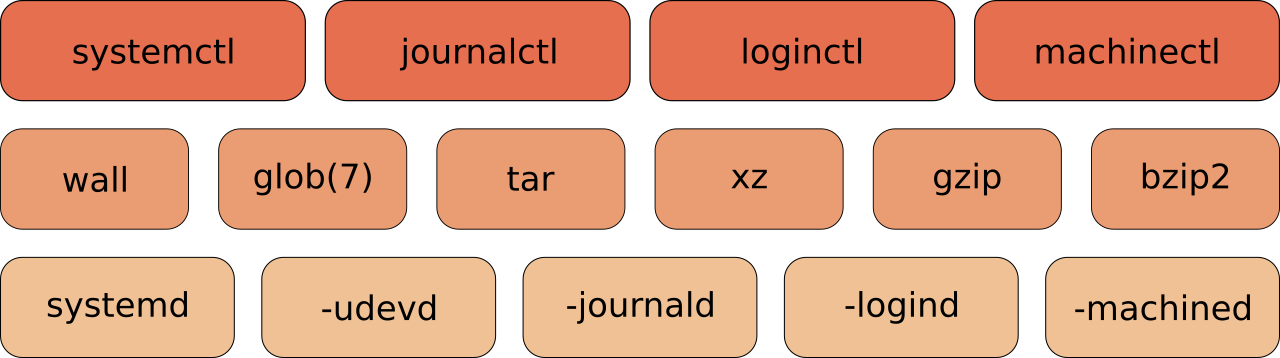
systemd is a software suite that provides an array of system components for Linux operating systems. Its main aim is to unify service configuration and behavior across Linux distributions; systemd's primary component is a system and service manager, i.e. an init system used to bootstrap user space and manage user processes. It also provides replacements for various daemons and utilities, including device management, login management, network connection management, and event logging. The name systemd adheres to the Unix convention of naming daemons by appending the letter d. It also plays on the term "SystemD", which refers to a person's ability to adapt quickly and improvise to solve problems.
systemd has replaced all the standard init/runlevel/rc functionality. Both Red Hat and Debian and their derivatives have decided in 2014 that systemd was to replace init in current and future releases (RHEL7+ and Debian 8+).
If you still encounter a book, webpage, blog or forum post that mentions commands like service, /etc/init.d/, chkconfig, etc., you should know that these are considered 'legacy' and have been replaced with systemctl!
The screenshot below shows systemd running as PID (Process ID) 1 on Enterprise Linux.
student@el:~$ ps -fq 1
UID          PID    PPID  C STIME TTY          TIME CMD
root           1       0  0 08:09 ?        00:00:00 /usr/lib/systemd/systemd --switched-root --system -
When you show PID 1 on Debian, it seems that it's not systemd but init. However, this is actually a symbolic link to systemd, as you can see in the screenshot below.
student@debian:~$ ps -fq 1
UID          PID    PPID  C STIME TTY          TIME CMD
root           1       0  0 08:04 ?        00:00:00 /sbin/init
student@debian:~$ ls -l /sbin/init
lrwxrwxrwx 1 root root 22 Sep  9  2025 /sbin/init -> ../lib/systemd/systemd
systemd consists of several components that are responsible for different aspects of system management, like log management, user session management, locale settings, network configuration, device management, etc. Linux distributions can choose which components to include in their distribution, or not.
For example on this Enterprise Linux system, these are the running systemd components:
student@el:~$ ps -ef | grep systemd
root           1       0  0 08:09 ?        00:00:00 /usr/lib/systemd/systemd --switched-root --system --deserialize=43
root         787       1  0 08:09 ?        00:00:00 /usr/lib/systemd/systemd-journald
root         827       1  0 08:09 ?        00:00:00 /usr/lib/systemd/systemd-userdbd
root         835       1  0 08:09 ?        00:00:00 /usr/lib/systemd/systemd-udevd
root         957       1  0 08:09 ?        00:00:00 /usr/lib/systemd/systemd-logind
vagrant     4885       1  0 08:09 ?        00:00:00 /usr/lib/systemd/systemd --user
[... some output omitted ...]
While on this Debian system, these are the running systemd components:
student@debian:~$ ps -ef | grep systemd
root         329       1  0 08:05 ?        00:00:00 /usr/lib/systemd/systemd-journald
root         382       1  0 08:05 ?        00:00:00 /usr/lib/systemd/systemd-udevd
message+     698       1  0 08:05 ?        00:00:00 /usr/bin/dbus-daemon --system --address=systemd: --nofork --nopidfile --systemd-activation --syslog-only
root         708       1  0 08:05 ?        00:00:00 /usr/lib/systemd/systemd-logind
vagrant     1768       1  0 08:15 ?        00:00:00 /usr/lib/systemd/systemd --user
systemd targets
The first command to learn is systemctl list-units --type=target (or the shorter version systemctl -t target). It will show you the different targets on the system, i.e. specific points to reach when booting the system. For example the graphical.target is
reached when you get a graphical interface, the multi-user.target is reached when you get a command line interface with networking, etc.
student@el:~$ systemctl list-units --type=target
  UNIT                     LOAD   ACTIVE SUB    DESCRIPTION
  basic.target             loaded active active Basic System
  cryptsetup.target        loaded active active Local Encrypted Volumes
[... output omitted ...]
  sockets.target           loaded active active Socket Units
  ssh-access.target        loaded active active SSH Access Available
  sshd-keygen.target       loaded active active sshd-keygen.target
  swap.target              loaded active active Swaps
  sysinit.target           loaded active active System Initialization
  timers.target            loaded active active Timer Units
  veritysetup.target       loaded active active Local Verity Protected Volumes

Legend: LOAD   → Reflects whether the unit definition was properly loaded.
        ACTIVE → The high-level unit activation state, i.e. generalization of SUB.
        SUB    → The low-level unit activation state, values depend on unit type.

25 loaded units listed. Pass --all to see loaded but inactive units, too.
To show all installed unit files use 'systemctl list-unit-files'.
To switch to a specific target (for example multi-user.target), we use the command systemctl isolate. The following example shows how to open an emergency shell with minimal services running. Warning: do not run this command on a production system, over an SSH connection, or on systems to which you do not have physical access. In the rescue.target, network daemons are disabled, so you may lock yourself out.
You can compare the number of running processes before and after switching to another target. In the following example, we start in the rescue.target:
root@el:~# ps -ef | wc -l
109
root@el:~# systemctl isolate multi-user.target
[... output omitted ...]
root@el:~# ps -ef | wc -l
141
To see the default target, use systemctl get-default and to change it, use systemctl set-default:
student@debian:~$ systemctl get-default
graphical.target
student@debian:~$ sudo systemctl set-default multi-user.target
Created symlink '/etc/systemd/system/default.target' → '/usr/lib/systemd/system/multi-user.target'.
This command removed the file /etc/systemd/system/default.target and replaced it with a symbolic link to multi-user.target.
systemd dependencies
A systemd target holds a list of services that are required to reach that target. You can see the dependencies of a target with the command systemctl list-dependencies <target>. For example:
student@el:~$ systemctl list-dependencies poweroff.target
poweroff.target
○ └─systemd-poweroff.service
student@el:~$ systemctl list-dependencies reboot.target
reboot.target
○ ├─grub2-systemd-integration.service
○ └─systemd-reboot.service
student@el:~$ systemctl list-dependencies multi-user.target
multi-user.target
● ├─atd.service
○ ├─audit-rules.service
● ├─auditd.service
● ├─chronyd.service
● ├─crond.service
● ├─firewalld.service
[... output omitted ...]
● ├─basic.target
● │ ├─-.mount
○ │ ├─rpmdb-migrate.service
○ │ ├─rpmdb-rebuild.service
● │ ├─paths.target
● │ ├─slices.target
● │ │ ├─-.slice
● │ │ └─system.slice
● │ ├─sockets.target
● │ │ ├─cockpit.socket
● │ │ ├─dbus.socket
● │ │ ├─dm-event.socket
● │ │ ├─iscsid.socket
[... output omitted ...]
Remark that the output shows a tree structure, and that targets may have other targets as dependencies.
systemd services
In the context of systemd, a background process or daemon is called a service. A service is defined by a unit file, which is a configuration file that describes how the service should be started, stopped, and managed. Unit files are typically located in /etc/systemd/system/ or /usr/lib/systemd/system/.
Issue the systemctl list-units -t service --all (or systemctl -at service) to get a list of all services on your system.
student@debian:~$ systemctl -at service
  UNIT                                 LOAD      ACTIVE   SUB     DESCRIPTION
  acpid.service                        loaded    active   running ACPI event daemon
  apache2.service                      loaded    active   running The Apache HTTP Server
  apparmor.service                     loaded    active   exited  Load AppArmor profiles
● auditd.service                       not-found inactive dead    auditd.service
  auth-rpcgss-module.service           loaded    inactive dead    Kernel Module supporting RPCSEC_GSS
  blk-availability.service             loaded    active   exited  Availability of block devices
● console-screen.service               not-found inactive dead    console-screen.service
  console-setup.service                loaded    active   exited  Set console font and keymap
  cron.service                         loaded    active   running Regular background program processin…
  dbus.service                         loaded    active   running D-Bus System Message Bus
● display-manager.service              not-found inactive dead    display-manager.service
● dkms.service                         not-found inactive dead    dkms.service
[... output omitted ...]
You can limit the output to running services by specifying the --state=running option:
student@debian:~$ systemctl -at service --state=running
  UNIT                     LOAD   ACTIVE SUB     DESCRIPTION
  acpid.service            loaded active running ACPI event daemon
  apache2.service          loaded active running The Apache HTTP Server
  cron.service             loaded active running Regular background program processing daemon
  dbus.service             loaded active running D-Bus System Message Bus
  getty@tty1.service       loaded active running Getty on tty1
  nfs-blkmap.service       loaded active running pNFS block layout mapping daemon
  rpcbind.service          loaded active running RPC bind portmap service
  ssh.service              loaded active running OpenBSD Secure Shell server
  systemd-journald.service loaded active running Journal Service
  systemd-logind.service   loaded active running User Login Management
  systemd-udevd.service    loaded active running Rule-based Manager for Device Events and Files
  user@1000.service        loaded active running User Manager for UID 1000
  vboxadd-service.service  loaded active running vboxadd-service.service

Legend: LOAD   → Reflects whether the unit definition was properly loaded.
        ACTIVE → The high-level unit activation state, i.e. generalization of SUB.
        SUB    → The low-level unit activation state, values depend on unit type.

13 loaded units listed.
To show all installed unit files use 'systemctl list-unit-files'.
Showing failed services can also be useful:
student@debian:~$ systemctl -at service --failed
  UNIT            LOAD   ACTIVE SUB    DESCRIPTION
● apache2.service loaded failed failed The Apache HTTP Server

Legend: LOAD   → Reflects whether the unit definition was properly loaded.
        ACTIVE → The high-level unit activation state, i.e. generalization of SUB.
        SUB    → The low-level unit activation state, values depend on unit type.

1 loaded units listed.
To show all installed unit files use 'systemctl list-unit-files'.
service status
Below is a (truncated) screenshot showing how to see the status of the sshd service. (This RHEL server was attacked using brute force ssh on 2 August 2015.)
[root@linux1 ~]# systemctl status sshd.service

sshd.service - OpenSSH server daemon
    Loaded: loaded (/usr/lib/systemd/system/sshd.service; enabled)
    Active: active (running) since Wed 2015-07-29 12:00:10 CEST; 1 weeks 0 days ago
Main PID: 1123 (sshd)
    CGroup: /system.slice/sshd.service
            └─1123 /usr/sbin/sshd -D

Aug 02 16:45:24 rhel81 sshd[12704]: Failed password for root from 43.229.53.79
Aug 02 18:15:28 rhel81 sshd[12872]: pam_unix(sshd:auth): authentication failur
Aug 02 18:15:28 rhel81 sshd[12872]: pam_succeed_if(sshd:auth): requirement "ui
Aug 02 18:15:30 rhel81 sshd[12872]: Failed password for root from 43.229.53.79
Aug 02 18:15:30 rhel81 sshd[12872]: pam_succeed_if(sshd:auth): requirement "ui
Aug 02 18:15:32 rhel81 sshd[12872]: Failed password for root from 43.229.53.79
Aug 02 18:15:32 rhel81 sshd[12872]: pam_succeed_if(sshd:auth): requirement "ui
Aug 02 18:15:34 rhel81 sshd[12872]: Failed password for root from 43.229.53.79
Aug 02 18:15:34 rhel81 sshd[12872]: Received disconnect from 43.229.53.79: 11:
Aug 03 10:21:11 rhel81 sshd[14616]: pam_unix(sshd:auth): authentication failur
Aug 03 10:21:11 rhel81 sshd[14616]: pam_succeed_if(sshd:auth): requirement "ui
Aug 03 10:21:13 rhel81 sshd[14616]: Failed password for root from 119.188.7.14
Aug 03 10:21:13 rhel81 sshd[14616]: Received disconnect from 119.188.7.143: 11
Aug 03 14:20:03 rhel81 sshd[15083]: Accepted password for root from 192.168.1.
Hint: Some lines were ellipsized, use -l to show in full.
starting and stopping systemd services
This screenshot shows the new way to start and stop a service (and to check if it is active without the verbose output of systemctl status).
student@debian:~$ systemctl is-active apache2.service
inactive
student@debian:~$ sudo systemctl start apache2.service
student@debian:~$ systemctl is-active apache2.service
active
student@debian:~$ sudo systemctl stop apache2.service
student@debian:~$ systemctl is-active apache2.service
inactive
Starting and stopping a service is a change to the system state, so needs to be done with superuser privileges. Hence the sudo command in the example above.
When you want to start a service automatically at boot time, you can use the enable command. The disable command will remove the service from the list of services that are started at boot time. Both commands have an option --now to also start or stop the service immediately. The following screenshot shows how to enable and start the apache2 service.
student@debian:~$ systemctl is-enabled apache2.service
enabled
student@debian:~$ sudo systemctl disable apache2.service
Synchronizing state of apache2.service with SysV service script with /usr/lib/systemd/systemd-sysv-install.
Executing: /usr/lib/systemd/systemd-sysv-install disable apache2
Removed '/etc/systemd/system/multi-user.target.wants/apache2.service'.
student@debian:~$ systemctl is-enabled apache2.service
disabled
student@debian:~$ sudo systemctl enable --now apache2.service
Synchronizing state of apache2.service with SysV service script with /usr/lib/systemd/systemd-sysv-install.
Executing: /usr/lib/systemd/systemd-sysv-install enable apache2
Created symlink '/etc/systemd/system/multi-user.target.wants/apache2.service' → '/usr/lib/systemd/system/apache2.service'.
student@debian:~$ systemctl is-enabled apache2.service
enabled
Of course, the status command has more information than the is-active and is-enabled commands:
student@debian:~$ systemctl status apache2.service
● apache2.service - The Apache HTTP Server
     Loaded: loaded (/usr/lib/systemd/system/apache2.service; enabled; preset: enabled)
     Active: active (running) since Wed 2026-08-26 09:24:25 UTC; 4min 59s ago
 Invocation: 7f907da19a7843f4bf4dd14c8011a471
       Docs: https://httpd.apache.org/docs/2.4/
   Main PID: 2416 (apache2)
      Tasks: 55 (limit: 3506)
     Memory: 6.8M (peak: 7.2M)
        CPU: 27ms
     CGroup: /system.slice/apache2.service
             ├─2416 /usr/sbin/apache2 -k start
             ├─2417 /usr/sbin/apache2 -k start
             └─2418 /usr/sbin/apache2 -k start
In the context of starting ans stopping services, the most important lines in this output are the ones starting with Loaded:, and Active:. What is also useful to note is that preset: enabled means that the service is immediately enabled when the package is installed, while preset: disabled means that the service is not enabled when the package is installed. Debian usually has preset: enabled, so after installing Apache, for example, it will be immediately started and enabled. On Enterprise Linux, however, services are usually installed with preset: disabled, so after installing Apache, you will need to start and enable it manually.
Presets for sshd and Apache on Debian:
student@debian:~$ systemctl status apache2.service | grep preset:
     Loaded: loaded (/usr/lib/systemd/system/apache2.service; enabled; preset: enabled)
student@debian:~$ systemctl status sshd.service | grep preset:
     Loaded: loaded (/usr/lib/systemd/system/ssh.service; enabled; preset: enabled)
And on Enterprise Linux:
student@el:~$ systemctl status sshd.service | grep preset:
     Loaded: loaded (/usr/lib/systemd/system/sshd.service; enabled; preset: enabled)
student@el:~$ systemctl status httpd.service | grep preset:
     Loaded: loaded (/usr/lib/systemd/system/httpd.service; enabled; preset: disabled)
systemd signalling
You can also use systemd to kill problematic services.
Depending on the configuration of the service, the process may end up in a "failed" state, or it may be relaunched automatically. Since the systemctl command usually doesn't show mouch output, the system logs can show you what happened.
vagrant@debian:~$ sudo journalctl -flu apache2.service
Aug 26 09:21:35 debian systemd[1]: Starting apache2.service - The Apache HTTP Server...
Aug 26 09:21:35 debian systemd[1]: Started apache2.service - The Apache HTTP Server.
Aug 26 09:42:12 debian systemd[1]: apache2.service: Sent signal SIGKILL to main process 2836 (apache2) on client request.
Aug 26 09:42:12 debian systemd[1]: apache2.service: Killed unit cgroup with SIGKILL on client request.
Aug 26 09:42:12 debian systemd[1]: apache2.service: Main process exited, code=killed, status=9/KILL
Aug 26 09:42:12 debian systemd[1]: apache2.service: Killing process 2893 (apache2) with signal SIGKILL.
Aug 26 09:42:12 debian systemd[1]: apache2.service: Failed with result 'signal'.
Aug 26 09:42:12 debian systemd[1]: apache2.service: Scheduled restart job, restart counter is at 2.
Aug 26 09:42:12 debian systemd[1]: Starting apache2.service - The Apache HTTP Server...
Aug 26 09:42:13 debian systemd[1]: Started apache2.service - The Apache HTTP Server.
systemd shutdown
systemd also handles the shutdown of the system. The systemctl poweroff, systemctl halt and systemctl reboot commands are used to power off, halt or reboot the system, respectively. These commands will stop all running services and unmount all file systems before shutting down the system.
Shortcut commands poweroff, halt and reboot are also available, but they are actually symbolic links to the systemctl executable.
student@el:~$ ls -l /usr/sbin/poweroff
lrwxrwxrwx. 1 root root 16 Aug 17  2025 /usr/sbin/poweroff -> ../bin/systemctl
student@el:~$ ls -l /usr/sbin/halt
lrwxrwxrwx. 1 root root 16 Aug 17  2025 /usr/sbin/halt -> ../bin/systemctl
student@el:~$ ls -l /usr/sbin/reboot
lrwxrwxrwx. 1 root root 16 Aug 17  2025 /usr/sbin/reboot -> ../bin/systemctl
remote systemd
The systemctl utility has a buil-in remote control providing there is an ssh daemon running on the remote system.
This screenshot shows how to use systemctl to verify a service on an EL server over SSH. We issue the command on a Debian system, where the httpd service can never be available (it's called apache2 instead).
student@debian:~$ systemctl -H student@192.168.56.10 status httpd
The authenticity of host '192.168.56.10 (192.168.56.10)' can't be established.
ED25519 key fingerprint is SHA256:VNK/tBRO7CA11AJMzeTEBITQ2DtzNjFJsCub5+Q2hmw.
This key is not known by any other names.
Are you sure you want to continue connecting (yes/no/[fingerprint])?
Warning: Permanently added '192.168.56.10' (ED25519) to the list of known hosts.
student@192.168.56.10's password:
● httpd.service - The Apache HTTP Server
     Loaded: loaded (/usr/lib/systemd/system/httpd.service; enabled; preset: disabled)
     Active: active (running) since Wed 2026-08-26 08:55:45 UTC; 54min ago
 Invocation: 810edfbf8daf425286673be834ea0dc4
       Docs: man:httpd.service(8)
   Main PID: 9012
     Status: "Total requests: 0; Idle/Busy workers 100/0;Requests/sec: 0; Bytes served/sec:   0 B/sec"
      Tasks: 177 (limit: 18320)
     Memory: 14.8M (peak: 15.1M)
        CPU: 1.062s
     CGroup: /system.slice/httpd.service
             ├─9012 /usr/sbin/httpd -DFOREGROUND
             ├─9095 /usr/sbin/httpd -DFOREGROUND
             ├─9096 /usr/sbin/httpd -DFOREGROUND
             ├─9097 /usr/sbin/httpd -DFOREGROUND
             └─9102 /usr/sbin/httpd -DFOREGROUND
there is more systemd
There are other components in the systemd ecosystem. Here's a non-exhaustive list of some of them:
systemd-analyze: analyze the boot process and performance of the systemsystemd-boot: boot manager for EFI systemssystemd-coredump: capture and manage core dumpssystemd-firstboot: initialize a new systemsystemd-homed: manage user home directoriessystemd-hostnamed: manage host and domain namessystemd-journald: collect and manage log datasystemd-localed: manage system locale and keyboard layoutsystemd-logind: manage user logins and sessionssystemd-networkd: manage network configurationsystemd-nspawn: lightweight container managersystemd-oomd: out-of-memory daemonsystemd-resolved: provide network name resolutionsystemd-sysusers: manage system users and groupssystemd-timesyncd: synchronize the system clock with remote NTP serverssystemd-udevd: manage device events and device nodes
As mentioned before, distributions can choose which components to include in their distribution, or not.
As a final example, systemd-analyze blame will give you an overview of the time it took for each service to boot.
student@debian:~$ systemd-analyze blame | head
422ms ifupdown-pre.service
252ms dev-mapper-debian\x2d\x2d13\x2d\x2dvg\x2droot.device
107ms keyboard-setup.service
105ms networking.service
 99ms vboxadd.service
 97ms lvm2-monitor.service
 89ms modprobe@drm.service
 89ms apparmor.service
 87ms user@1000.service
 84ms e2scrub_reap.service
practice: systemd
You can repeat these exercises on different Linux distributions, e.g. Debian, Ubuntu, AlmaLinux, Fedora, Gentoo, Arch, etc. The commands should be the same, but the service names may differ and the behaviour of the system may be different.
-
Determine on which target you are at the moment
-
List all systemctl units with type of service. Do the same for units with type of socket. In which man page can you find information about this type of unit?What does this type of unit do? What other types of units are there?
-
Check the status of the cron service.
-
Disable the cron service
-
Install apache, and check the status. If necessary, enable and start the service (with a single command). Now install nginx. Check the status of both services right after installation. Try this both on a Debian based and a RedHat based system and observe the difference in behaviour. Can you start both services at the same time? Check the status. Disable and stop Apache, then enable and start nginx, using a minimum of commands.
solution : systemd
In this solution, we are working on a Debian-based system. Try it yourself on some other Linux distribution!
-
Determine on which target you are at the moment
-
List all systemctl units with type of service.
systemctl list-unit-files --type=service-
Do the same for units with type of socket.
systemctl list-unit-files --type=socket -
In which man page can you find information about this type of unit?
systemd.unit(5) -
What does this type of unit do?
Socket units may be used to implement on-demand starting of services, as well as parallelized starting of services.
-
What other types of units are there?
- service, socket, target, device, mount, automount, timer, swap, path, slice, scope
-
-
Check the status of the cron service.
student@debian:~$ systemctl status cron.service ● cron.service - Regular background program processing daemon Loaded: loaded (/usr/lib/systemd/system/cron.service; enabled; preset: enabled) Active: active (running) since Wed 2026-08-26 18:48:20 UTC; 13min ago Invocation: 007dbf61eac5476797f9c1fe6c843d7b Docs: man:cron(8) Main PID: 918 (cron) Tasks: 1 (limit: 3506) Memory: 424K (peak: 1.8M) CPU: 3ms CGroup: /system.slice/cron.service └─918 /usr/sbin/cron -f -
Disable the cron service
-
Install apache, and check the status. If necessary, enable and start the service (with a single command). Now install nginx. Check the status of both services right after installation. Try this both on a Debian based and a RedHat based system and observe the difference in behaviour. Can you start both services at the same time? Check the status. Disable and stop Apache, then enable and start nginx, using a minimum of commands.
A complete transcript of this exercise:
student@debian:~$ sudo apt install -y apache2
Installing:
  apache2
[ ... output omitted ... ]
Enabling conf serve-cgi-bin.
Enabling site 000-default.
Created symlink '/etc/systemd/system/multi-user.target.wants/apache2.service' → '/usr/lib/systemd/system/apache2.service'.
Created symlink '/etc/systemd/system/multi-user.target.wants/apache-htcacheclean.service' → '/usr/lib/systemd/system/apache-htcacheclean.service'.
Processing triggers for man-db (2.13.1-1) ...
Processing triggers for libc-bin (2.41-12) ...
student@debian:~$ systemctl status apache2.service
● apache2.service - The Apache HTTP Server
     Loaded: loaded (/usr/lib/systemd/system/apache2.service; enabled; preset: enabled)
     Active: active (running) since Wed 2026-08-26 19:03:52 UTC; 28s ago
 Invocation: abafd65a9fe547a7a5539c483d4bb899
       Docs: https://httpd.apache.org/docs/2.4/
   Main PID: 3166 (apache2)
      Tasks: 55 (limit: 3506)
     Memory: 5.3M (peak: 5.8M)
        CPU: 16ms
     CGroup: /system.slice/apache2.service
             ├─3166 /usr/sbin/apache2 -k start
             ├─3167 /usr/sbin/apache2 -k start
             └─3168 /usr/sbin/apache2 -k start
student@debian:~$ sudo apt install -y nginx
Installing:
  nginx

[ ... output omitted ... ]

Created symlink '/etc/systemd/system/multi-user.target.wants/nginx.service' → '/usr/lib/systemd/system/nginx.service'.
Could not execute systemctl:  at /usr/bin/deb-systemd-invoke line 148.
Setting up nginx (1.26.3-3+deb13u7) ...
Not attempting to start NGINX, port 80 is already in use.
Processing triggers for man-db (2.13.1-1) ...
student@debian:~$ systemctl status nginx
× nginx.service - A high performance web server and a reverse proxy server
     Loaded: loaded (/usr/lib/systemd/system/nginx.service; enabled; preset: enabled)
     Active: failed (Result: exit-code) since Wed 2026-08-26 19:04:40 UTC; 8s ago
 Invocation: ae86af3d71fa42d1841eb55e09fee82e
       Docs: man:nginx(8)
    Process: 3479 ExecStartPre=/usr/sbin/nginx -t -q -g daemon on; master_process on; (code=exited, st>
    Process: 3480 ExecStart=/usr/sbin/nginx -g daemon on; master_process on; (code=exited, status=1/FA>
   Mem peak: 1.9M
        CPU: 12ms
student@debian:~$ sudo systemctl disable --now apache2.service
Synchronizing state of apache2.service with SysV service script with /usr/lib/systemd/systemd-sysv-install.
Executing: /usr/lib/systemd/systemd-sysv-install disable apache2
Removed '/etc/systemd/system/multi-user.target.wants/apache2.service'.
student@debian:~$ sudo systemctl start nginx
student@debian:~$ systemctl status nginx
● nginx.service - A high performance web server and a reverse proxy server
     Loaded: loaded (/usr/lib/systemd/system/nginx.service; enabled; preset: enabled)
     Active: active (running) since Wed 2026-08-26 19:05:31 UTC; 4s ago
 Invocation: 9dcd0b316d1442c3b78069d52390761f
       Docs: man:nginx(8)
    Process: 3715 ExecStartPre=/usr/sbin/nginx -t -q -g daemon on; master_process on; (code=exited, st>
    Process: 3717 ExecStart=/usr/sbin/nginx -g daemon on; master_process on; (code=exited, status=0/SU>
   Main PID: 3718 (nginx)
      Tasks: 3 (limit: 3506)
     Memory: 2.9M (peak: 3.3M)
        CPU: 11ms
     CGroup: /system.slice/nginx.service
             ├─3718 "nginx: master process /usr/sbin/nginx -g daemon on; master_process on;"
             ├─3719 "nginx: worker process"
             └─3720 "nginx: worker process"
Things to note:
- After installing Apache, the service is immediately started and enabled (which is not the case on EL!)
- After installing Nginx, the service can't be started because Apache is already using port 80. See the output:
Not attempting to start NGINX, port 80 is already in use. Consequently, the service is now in a failed state. - In order to start Nginx, we first have to disable and stop Apache. After that, we can start Nginx and the service is now running.